
Every email and phone number on a page, in eight steps
Paste a page, drop in a PDF, or click the one-click bookmarklet. Sampark finds the contacts, puts names next to them, cleans them up and copies them in one click. Everything happens on your device: nothing you scan is sent anywhere.
- Find and copy every email and phone number, with names
- The bookmarklet, PDFs and files, hidden emails decoded
- A collection across many pages; CSV, vCard and table export
- History of your last 25 scans; bookmarklet into the collection
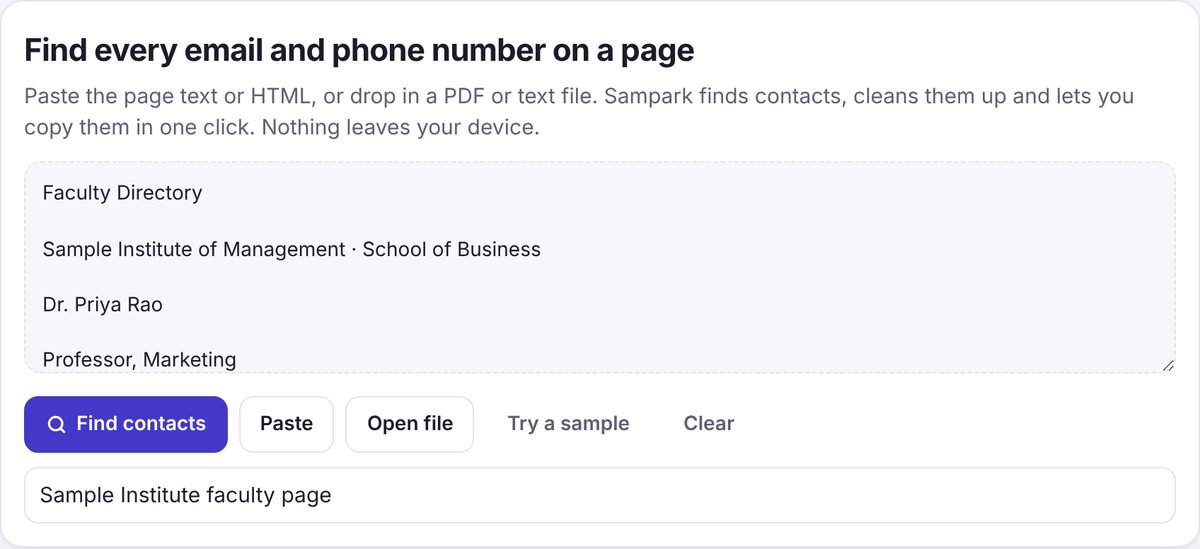
1Paste a page
- Open the web page that has the contacts, for example a college's Faculty, Contact or Directory page. These usually list far more people than a home page.
- Select everything on it and copy:
Ctrl + A, thenCtrl + C(on a Mac,Cmd + AandCmd + C). - Open sampark.stroban.app, click in the big box and paste (
Ctrl + V), or tap Paste. - Optional: type where it came from in Where is this from?, for example "Sample Institute faculty page". It labels the scan and, with Pro, every contact you collect.
- Tap Find contacts.
2Check and copy the results
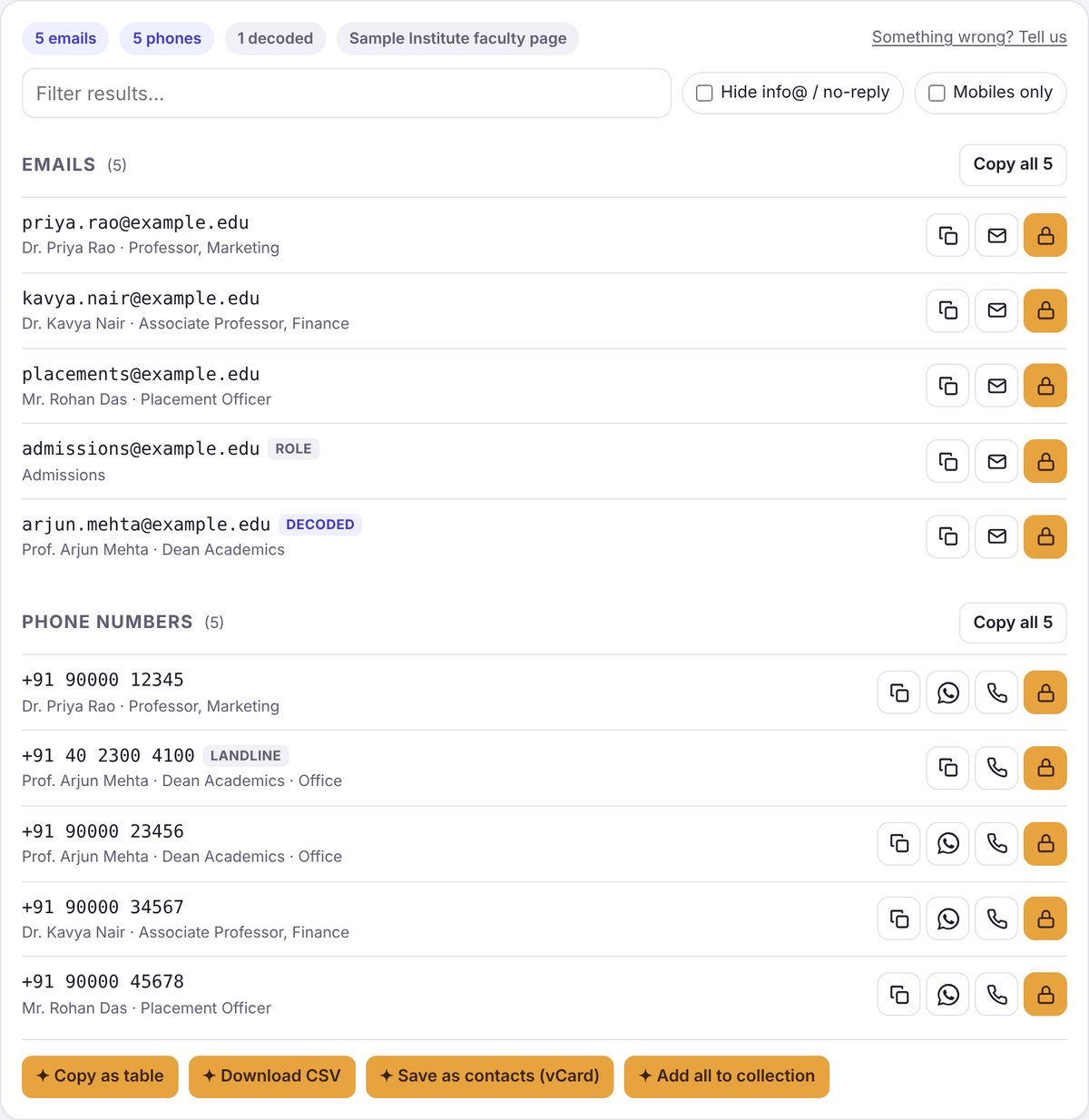
Sampark lists the emails and phone numbers it found, with the person's name and role underneath when the page shows them. Repeats are removed and numbers are written the same way.
- Tags explain a result:
ROLEis a shared address such as admissions@,DECODEDis an email that was written as "name [at] site [dot] com", andLANDLINEorTOLL-FREEmarks numbers that are not mobiles. - Narrow the list with Filter results…, the domain menu, Hide info@ / no-reply and Mobiles only.
- Copy everything with Copy all, or use the buttons on each row: copy, email, WhatsApp or call.
3Add the bookmarklet on a laptop
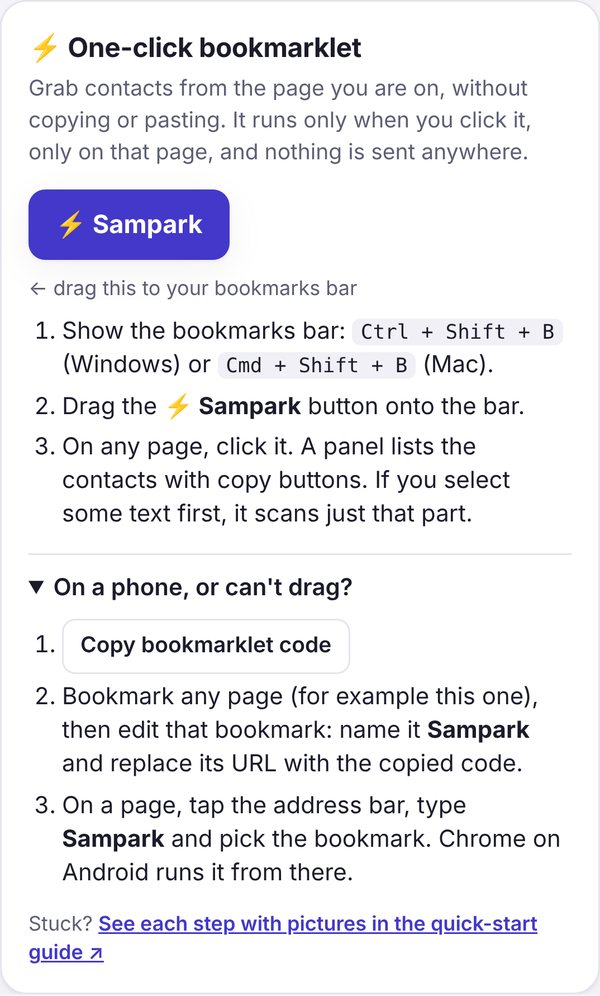
The bookmarklet is a bookmark that runs Sampark on the page you are looking at, so you don't need to copy and paste. You set it up once in your laptop's browser.
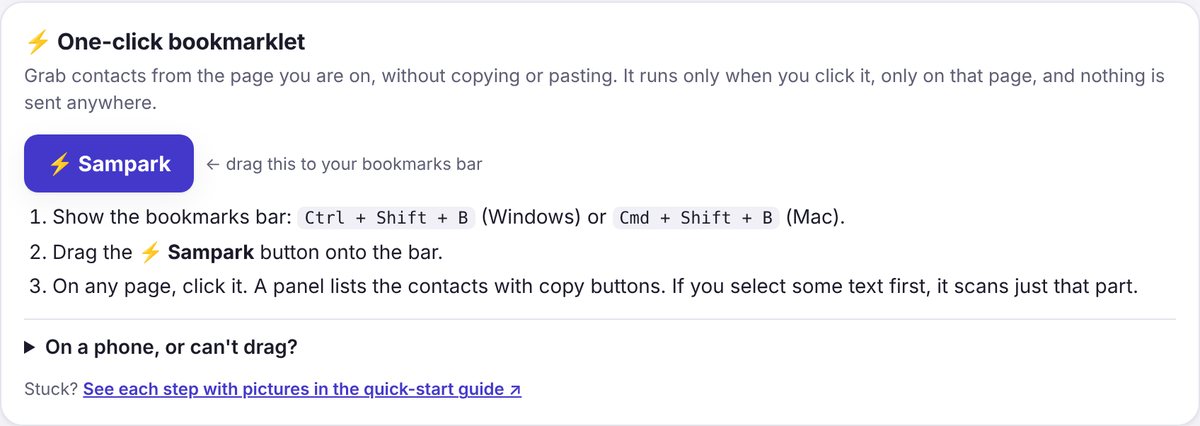
- Show your browser's bookmarks bar:
Ctrl + Shift + Bon Windows,Cmd + Shift + Bon a Mac. - In Sampark, scroll down to ⚡ One-click bookmarklet.
- Drag the purple ⚡ Sampark button up onto the bookmarks bar and let go. A new bookmark called "⚡ Sampark" appears there.
4Use the bookmarklet on any page
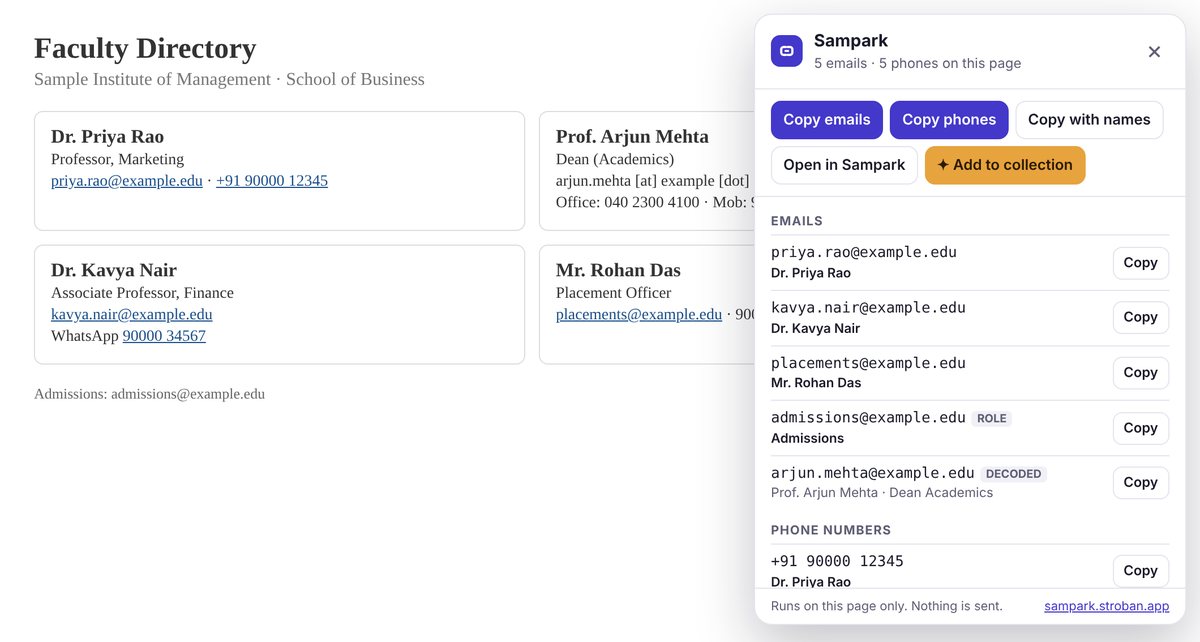
- Go to the page with the contacts and click ⚡ Sampark on your bookmarks bar.
- A small Sampark panel opens on the right of that page, listing the emails and phone numbers with names.
- Use Copy emails, Copy phones or Copy with names, or Copy on a single row.
- Open in Sampark opens the results in the app, with the filters and exports. With Pro, ✦ Add to collection adds them straight to your collection (step 8).
- Close the panel with ×,
Esc, or by clicking the bookmark again.
5On a phone
Copy and paste (any phone). On the page, long-press a word, tap Select all, then Copy. Open Sampark, tap Paste, then Find contacts.
Share to Sampark (Android, once Sampark is installed). Select the text, tap Share and choose Sampark. It opens with the text and finds the contacts.
The bookmarklet in Chrome on Android:
- In Sampark, open On a phone, or can't drag? under the bookmarklet and tap Copy bookmarklet code.
- Bookmark any page (☆ in Chrome's ⋮ menu). Then open ⋮ → Bookmarks, find the new bookmark, tap its ⋮ and Edit.
- Change its name to Sampark, delete everything in the address (URL) box, paste the copied code there, and save.
- On any page, tap the address bar, type Sampark and tap the bookmark that appears (the one with the star). The panel opens on that page.
javascript:. On an iPhone, copy and paste is the simplest way.6PDFs and other files
- Tap Open file, or drag files onto the big box. You can choose several at once.
- Sampark reads PDFs, web pages saved as HTML, text, CSV and vCard files, saved emails (.eml) and exported chats.
- The contacts appear as in step 2, ready to copy.
Brochures, conference programmes and staff directories work well. A PDF that is only a scanned picture of a page has no text inside, so Sampark can't read it.
7Activate Pro
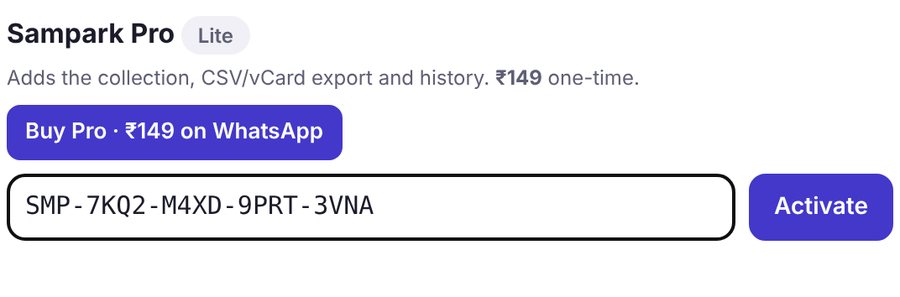
Buy Pro from ✦ Get Pro or Buy Pro · ₹149 on WhatsApp. Your key arrives by email from hello@stroban.app (check spam the first time). It looks like SMP-XXXX-XXXX-XXXX-XXXX.
- Open sampark.stroban.app and tap ⚙ Settings at the top right.
- Under Sampark Pro, paste the key into the box and tap Activate.
- The badge at the top changes from Lite to Pro, and Settings says "Pro is active on this device".
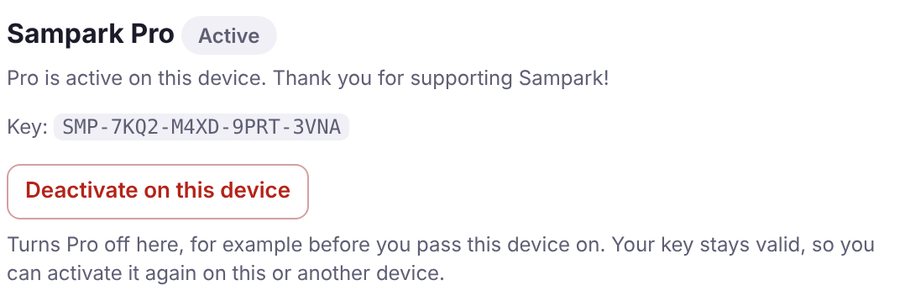
Pro is unlocked on that device. To use it on another phone or computer, paste the same key there.
8Collect from many pages Pro
The collection gathers contacts from many pages into one list without repeats, each labelled with where it came from.
- After a scan, tap + on the rows you want, or Add all to collection under the results. From the bookmarklet, use ✦ Add to collection.
- Scan the next page and add again. The Collection card shows everything you have gathered.
- Export the whole collection: Copy emails, Copy phones, Copy as table (paste into Excel or Google Sheets), CSV, or vCard to save them to your phone's contacts.
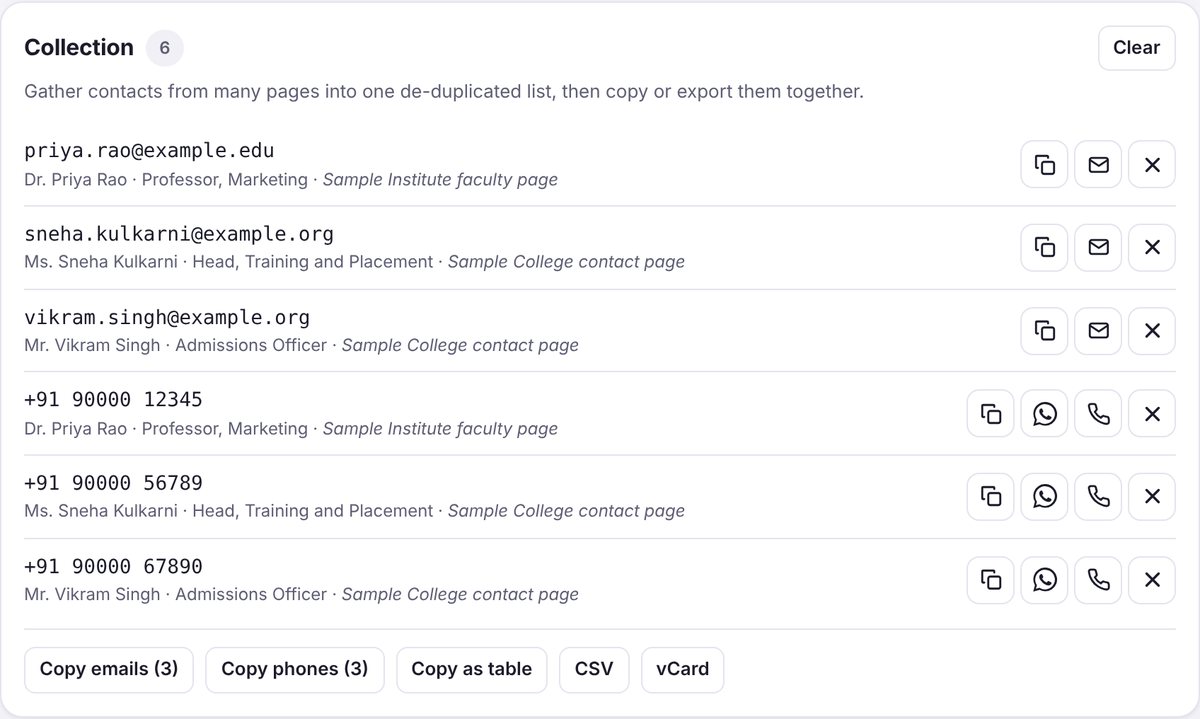
The same exports work on a single scan: Copy as table, Download CSV and Save as contacts (vCard) under the results. Recent scans keeps your last 25 scans on this device; tap Open to see one again.

✓Good to know and help
- Private by design. Everything you paste, open or scan stays on your device. Only two things ever reach our server: your licence key when you activate it, and a feedback message if you send one.
- Use contacts fairly. Contact people only in ways they would expect, and respect DND (Do Not Disturb) rules and privacy laws.
- Shared computer? Before you leave it, use ⚙ Settings → Deactivate on this device. Your key stays valid for your own devices.
- Install it. ⚙ Settings → Install Sampark adds it to your home screen or dock, and it works offline. On an iPhone: Share → Add to Home Screen.
+91 83673 54510
hello@stroban.app
Tap Feedback in the app. If we use it, you get a reward.